For readers
Finding a book
Search, filter and browse your whole library from one homepage.
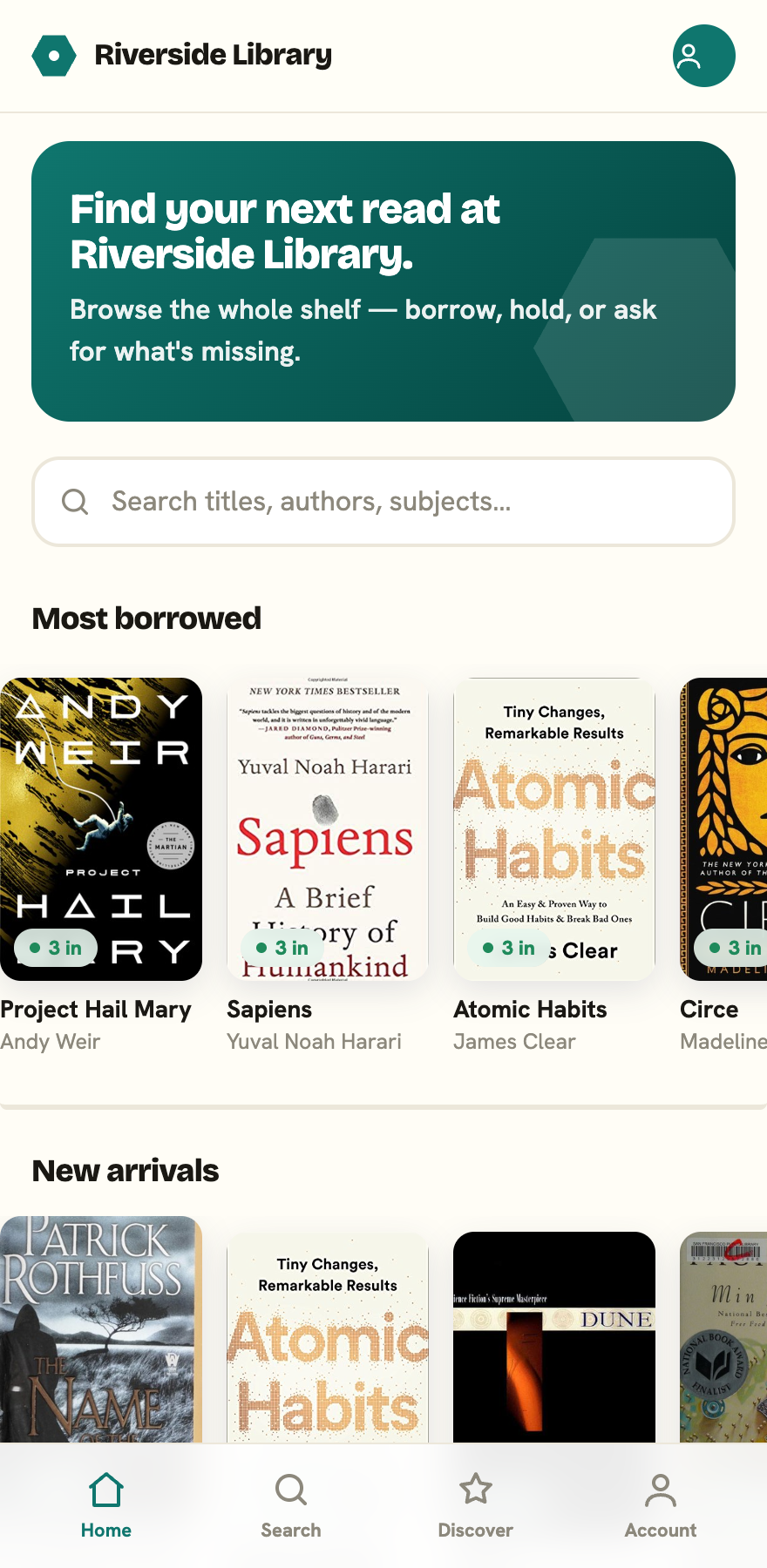
Open your library at your-library.beeshelf.com. Everything lives on one page. The search box, the filters and every shelf are on the homepage, and your account sits behind the profile chip in the top right.
The homepage
The page opens with a search box (“Search titles, authors, subjects…”) and a filter bar. Below it are shelves you can swipe through: For you once you’re signed in and the library knows your taste, showing Popular right now until then, and New arrivals. Tap any cover to open the book. The shelves step aside as soon as you search or filter, and the grid below becomes your results.
Beside the search box is a Discover tile. Tap it to open the full-screen map of your library, where books cluster by what they have in common. See Exploring with Discover.
Searching
Start typing a title or an author in the search box at the top of the homepage. (Subjects aren’t matched by the search box; use the subject filter below it.) Results appear as you type, and the search forgives small typos, so you don’t have to spell everything perfectly.
Under the search box is a filter bar. Switch between All and Available to hide books that are out; sort by Most borrowed, Title (A to Z), Recently added or Available first; and narrow by subject or collection with the dropdowns. Clear filters, next to the result count, resets everything at once.
Each result shows the cover, the title and author, and whether it’s available right now. Tap a cover to open the book’s page, where you can reserve a copy, or join the queue if every copy is out (see Borrowing, holds & renewals).
When there’s no match
If nothing comes up, you’ll see “No matches for” whatever you typed. Try fewer words. If the library simply doesn’t have the book, tap Request this book right there: the form opens already filled in with what you searched for, and you’ll hear when the book arrives. If you’re not signed in, you’ll be asked to sign in first. More in Requesting a book.