For librarians
Adding by hand & editing copies
Create a record manually, and edit any copy's barcode, shelf, condition, and label.
Not every book scans, and sometimes you need to change a copy after it’s in. Both are quick.
Add a book by hand
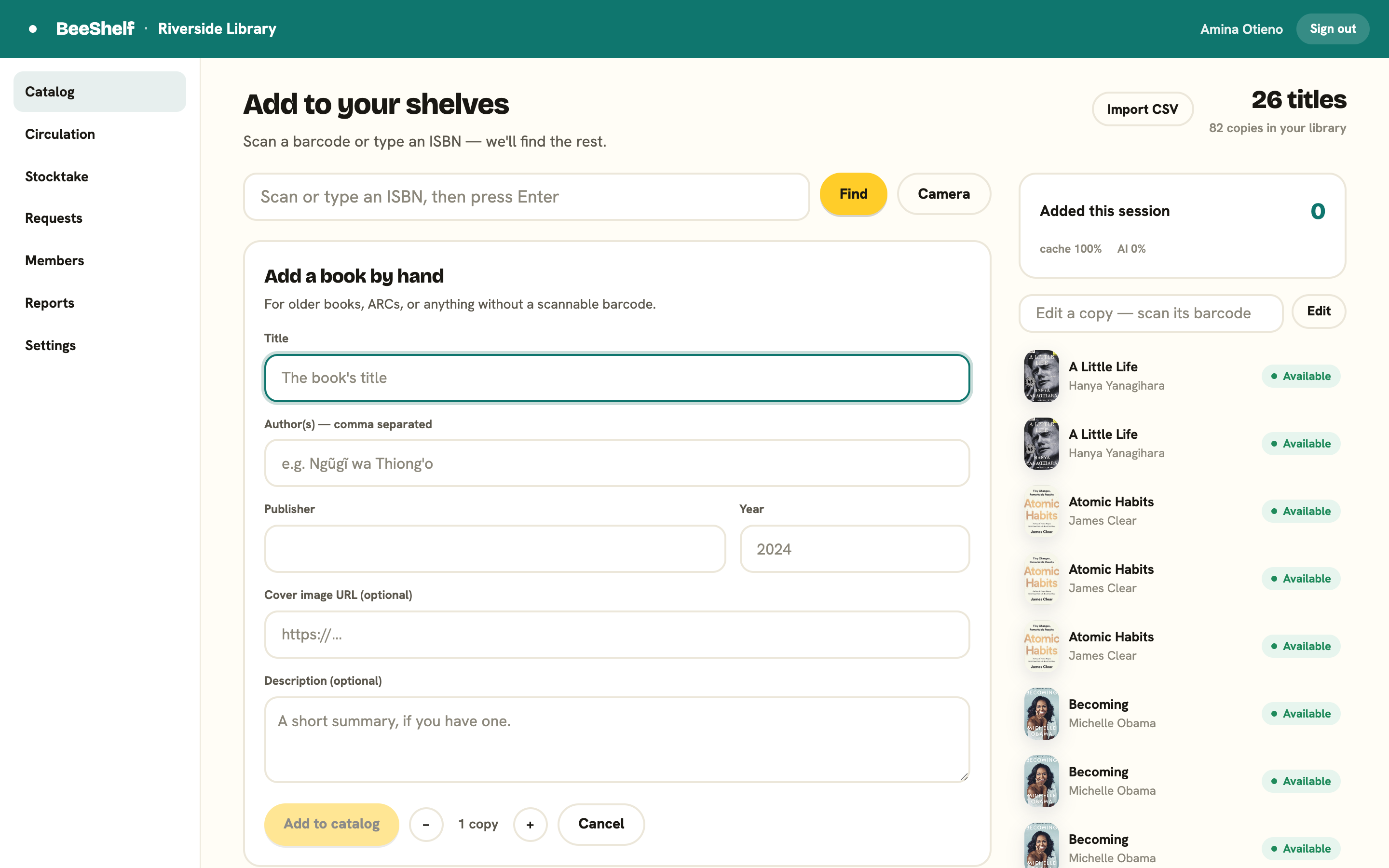
When a scan comes up empty, or you have a book with no barcode at all, press Add by hand (or No barcode? Add by hand). A book that wasn’t found while you were scanning also waits under This session with an Add by hand button, so you can come back to it when the shelf is done. A short form opens, with the ISBN already filled in if there was one.
- Type the Title. This is the only required field.
- Add the Author(s), separated by commas, if you know them.
- Add the Publisher and Year if you have them.
- Optionally paste a Cover image URL and a Description.
- Set the copy count, then press Add this book (it reads Add 3 copies and so on once you raise the count).
What you enter is saved to the shared catalog, so the next library with the same book starts from your record.
Add another copy of a book you already have
You don’t need to re-scan a second copy. Open the book on Browse and press + Add a copy. It inherits the shelf and collection from an existing copy, and the copy editor opens so you can assign its barcode.
Edit a copy
Every physical copy can be edited on its own. There are two ways in:
- On the Catalog tab, stay on Browse, click the book, then click the copy you want in its Copies list.
- Or, on Add books, click any book in the recently-added list in the sidebar.
You can also use the Edit a copy box in the Add books sidebar. Scan a barcode, or type a title or author, and press Look up. Barcodes open the copy straight away; a title or author search lists Matches on your shelves to pick from.
The copy editor lets you set:
- The barcode (assign one automatically if the copy doesn’t have a label yet).
- The call number and shelf location, so readers and stocktake know where it lives. Shelf location suggests the shelves you already use as you type, so they stay consistent. Type a new one and it joins the list.
- A condition note.
- The condition flags below.
A book’s collection is set on the book, not the copy: open the book on Browse and use the Collection card. It applies to every copy.
Collections
A collection is a named section of your catalogue: Reference, New arrivals, Junior fiction, whatever suits your shelves. Staff and readers can both filter by them.
They’re yours to create, and a new library starts with none. That’s why the Collection card described above may not be on your books yet: it stays hidden until at least one collection exists. To make one, open the Settings tab, find the Collections card, type a name and press Add. You can rename or delete them there later. Deleting a collection leaves its books alone, just uncategorised.
Collections are optional. If you don’t shelve by section, leave them empty and the card stays out of your way. Settings is open to administrators only, so ask yours if you don’t see the tab.
Condition flags
A copy can carry one or more flags, instead of a single status. That way a book can be both damaged and not for loan at once, and its display status is worked out from the flags. The flags are:
- Not for loan
- Damaged
- Lost
- Withdrawn
- Restricted
Toggle whichever apply. A reference book might be Not for loan; a missing one becomes Lost (stocktake can set this for you). See Item condition flags for what each one means for lending.
Flags save the moment you toggle them. The fields above them do not, so press Save copy when you’ve finished editing barcode, call number, shelf, or the condition note.
Remove a copy
Added a copy in error, or retiring one for good? Open it in the copy editor and press Remove this copy, then confirm. A copy that’s currently on loan can’t be removed. Check it in first. Removing is a soft delete, so its loan history stays intact for your reports.
Print a label
If a copy needs a barcode label, open it in the copy editor and use Print label. BeeShelf generates a scannable Code-128 barcode you can stick on the spine or inside cover.