Getting started
Signing in
How staff and readers sign in, with a password or with Google, and how to reset one.
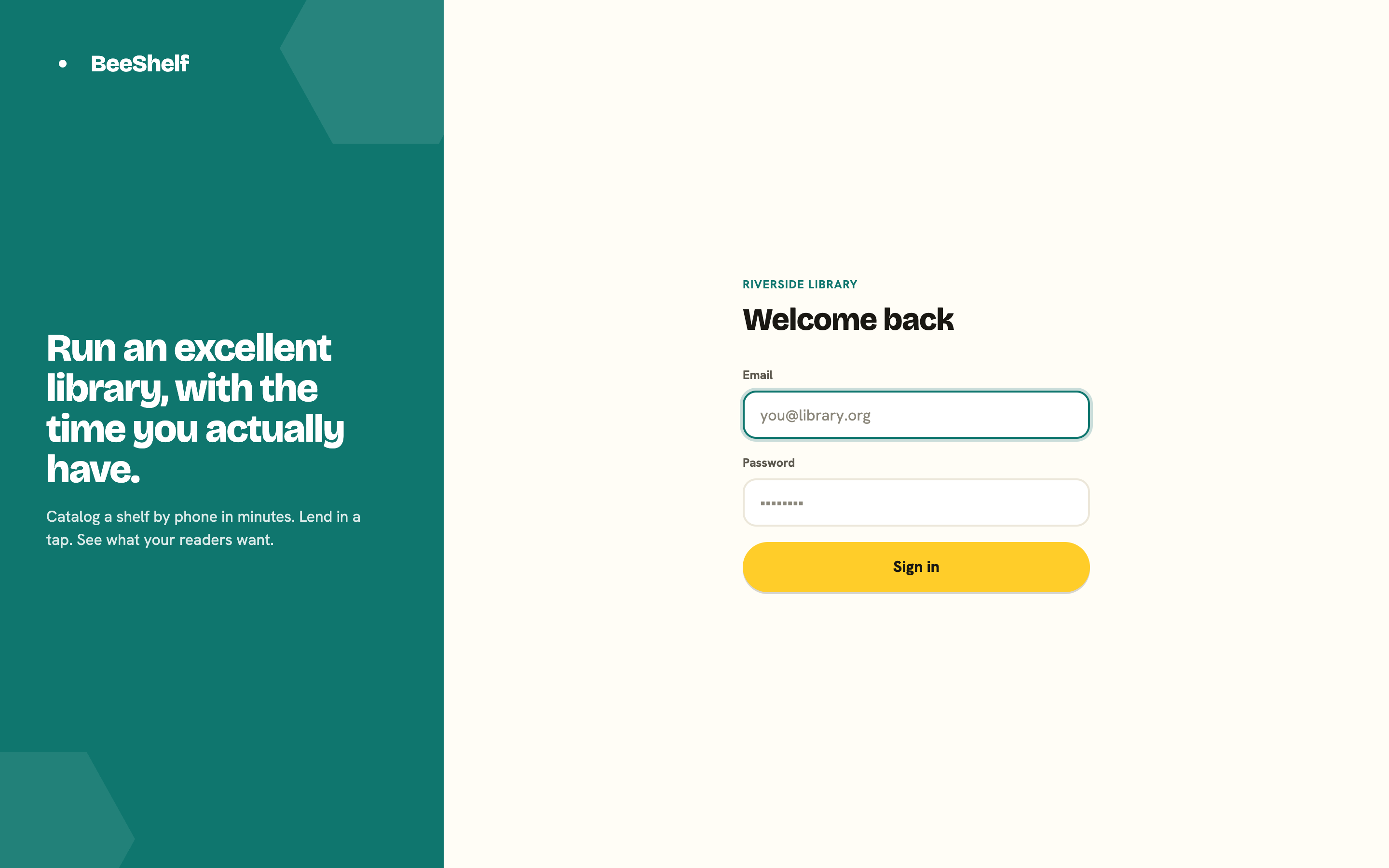
Everyone signs in at the same door. The quickest is app.beeshelf.com/login: enter your email and password, or tap Continue with Google, and BeeShelf finds your library for you. If you have accounts at more than one library, it offers a picker. You can also sign in at your library’s own address, your-library.beeshelf.com/login, which uses the short name (slug) your library was set up with. Either way one form serves staff and readers: BeeShelf checks who you are and sends staff to the Staff Console and readers to the reader app.
A password and Google work the same way. If your email is a staff account at a library, you land in that library’s Staff Console; otherwise you land in its reader app.
Staff
Sign in at app.beeshelf.com/login or at your-library.beeshelf.com/login with your email and password, or with Google. There’s no separate staff login: BeeShelf recognises staff accounts and opens the Staff Console on the Catalog tab. (Opening your-library.beeshelf.com/staff directly still works and shows the same sign-in form, Google button included.) The first time you sign in to a brand-new library, BeeShelf takes you to the guided Set up screen instead, where you name your library, pick a brand colour, and add your first books.
Google signs you in when the Google account’s email matches your staff account’s email, the same proof a password reset link relies on. An invited colleague can skip setting a password and use Google from the start. The first time you use Google, BeeShelf remembers that Google account: if someone else later gets the same email address, their Google account won’t open yours.
If you’re not sure of your library’s address, sign in at app.beeshelf.com/login instead and BeeShelf will route you to the right library. If you open a library address nobody has claimed, you’ll see “No library at this address yet”: check the spelling of the slug with your administrator.
Readers
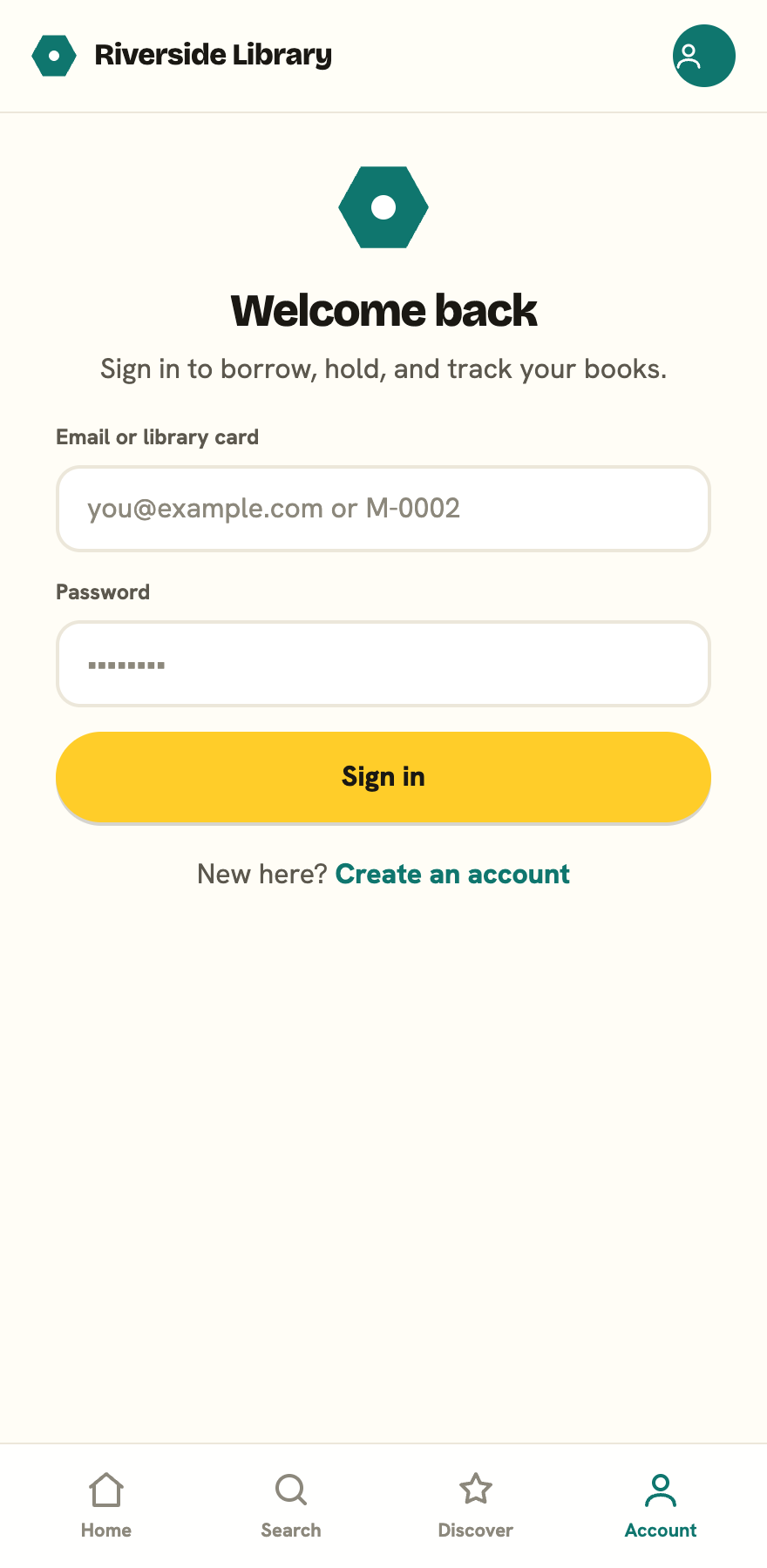
Readers open your-library.beeshelf.com and tap the profile chip in the top-right of the header. There’s no tab bar. From there they can:
- Sign in with an email or a library card number, plus a password.
- Continue with Google. A Google-verified email also satisfies the email check BeeShelf asks for before you can borrow or place holds.
- Create an account with a name, email, and a password of at least eight characters, if your library allows readers to register themselves. Depending on how your library is set up you may be signed in straight away, or your request may wait for a librarian to approve it (BeeShelf emails you when you’re in). Libraries that don’t offer self sign-up show a note asking you to speak to a librarian instead.
If your library already has you on file, because a librarian added you or imported a class list, Create an account doesn’t make a second account. BeeShelf emails a link to the address on file, and you set your password from there. That way only the owner of the inbox can take over the account, and your borrowing history comes with you.
Forgotten passwords and new staff accounts
Staff accounts are created by an admin in your library, or by an emailed invite link that’s valid for 48 hours (an admin can resend it). Forgotten your password? Use Forgot password? on the sign-in screen and BeeShelf emails you a link to set a new one. That works for staff and readers alike, and if you only ever used Google it’s how you add a password. If you’re staff, the email resets your staff password, which is the one that signs you in. Platform owners reset theirs at app.beeshelf.com/admin/reset, or sign in to the console with Google.
Readers who forget a password use the same Forgot password? link. If the email never arrives, a librarian can look them up under Members and check the address on file.