For librarians
Adding books by scanning
Turn a barcode into a full catalog record in seconds, on the Catalog tab.
The Catalog tab opens on Browse, your whole collection. Click Add books to switch to the scanning screen, titled “Add to your shelves.” That’s where a pile of books becomes a catalog. Most books take about two seconds each.
Before you start: choose a shelf
Libraries are usually catalogued shelf by shelf, so tell BeeShelf where this batch lives first. Press Choose a shelf for these books, type or pick a shelf (your existing shelves are suggested as you type), and press Set. Every copy you add from then on goes on that shelf, whether you scan it, type its ISBN, or add it by hand. The screen shows “These books go on Fiction A to C” so you always know where they’re going. When you move to the next shelf, press Change; press ✕ to stop using a shelf.
It’s optional. If your library doesn’t use shelf locations, ignore it.
On a phone: Scan books
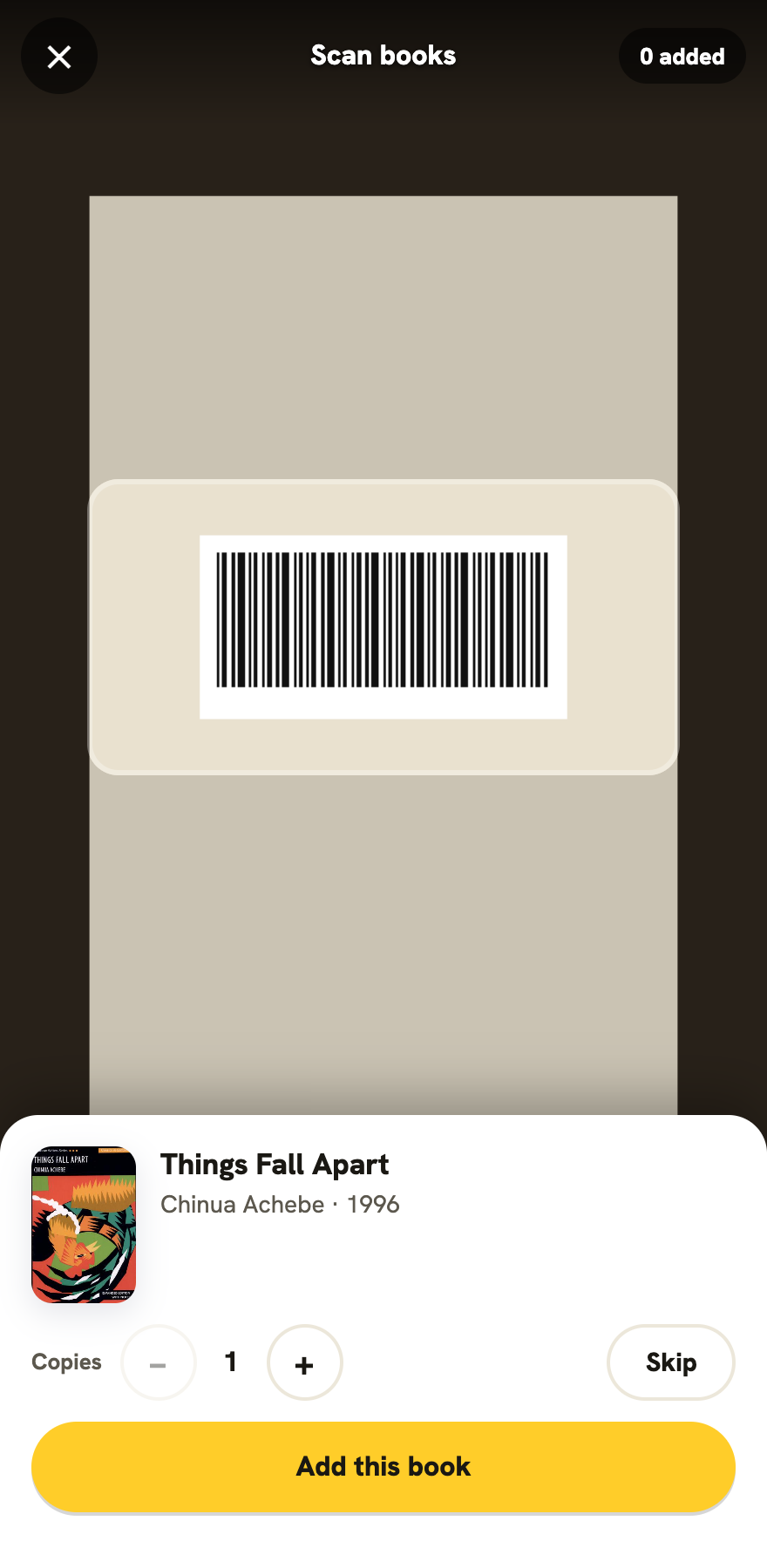
On a phone, the big yellow Scan books button is the way in. It opens the camera full screen, and the camera stays open until you’re done, so you can work along a shelf one book after another. The shelf you chose is shown at the top, as a reminder to change it when you move on.
Point the camera at the barcode on the back of a book, the one that starts 978 or 979. The frame flashes, and a panel slides up from the bottom with the cover, title and author. Then, with your thumb:
- Add this book is the big button at the bottom. It adds the book, and the camera is already looking for the next one.
- Skip leaves it out.
- − and + set the number of copies, for a class set.
Nothing goes in until you press. That’s on purpose: a book you scan twice by accident never becomes a second copy unless you choose it. If your library already holds the book, the panel says “You already have 1 copy” and the button reads Add another copy, so a second copy is always a decision. Holding the same book in front of the camera won’t read it again; take it away and bring it back if you really do want another copy.
After each book, the panel shows what just happened, with Undo if you added the wrong one. The count at the top shows how many you’ve added. Press Done when the shelf is finished.
If you point at the wrong barcode, like a price sticker or your library’s own label, BeeShelf tells you to look for the one that starts 978 or 979 and keeps scanning. If your browser blocks the camera, BeeShelf tells you and offers Type the ISBN instead. To scan, allow camera access for the site in your browser settings.
On a computer: scan or type into the box
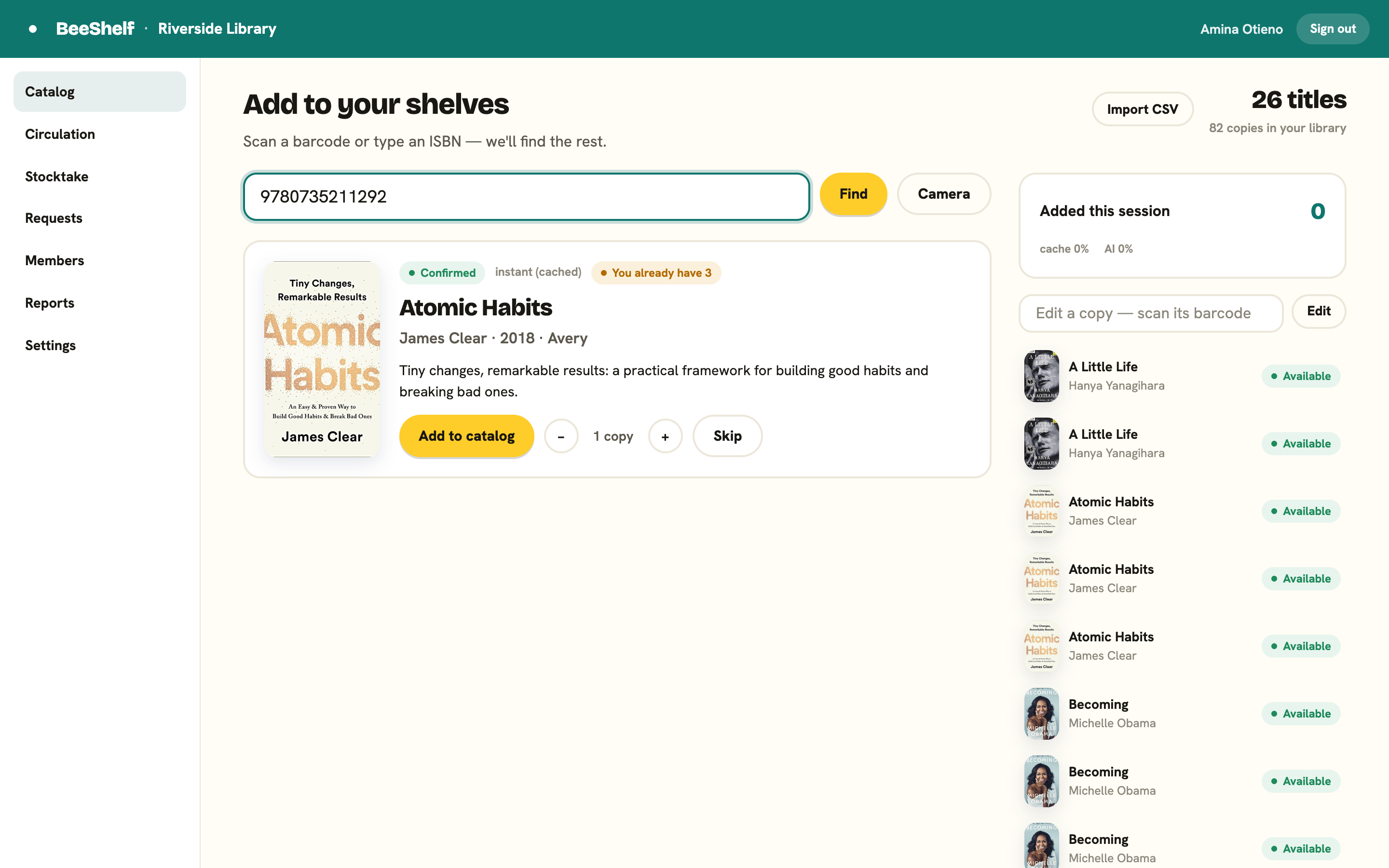
In the box that says “Scan, type an ISBN, or search a title or author,” do exactly that: scan the barcode, or type the ISBN, and press Enter (or click Find). The box also takes a title or an author: anything that isn’t an ISBN becomes a search, and you pick the right edition from the results.
A USB barcode scanner is the fastest way. It types the number and presses Enter for you, the book appears, and pressing Enter again adds it. The box is already empty for the next one, so the rhythm is scan, check, Enter, next book, without touching the mouse. A Bluetooth scanner paired with a tablet works the same way. A computer with a webcam can use Scan with camera instead.
In a second or two, BeeShelf finds the book and shows the cover, title, author, publisher, and a summary.
Add one copy, or several
If you have more than one copy of the same book, use the − and + buttons to set the count before you add (the button reads Add 3 copies). Each copy becomes its own item with its own barcode. If you already hold the book, the button says Add another copy instead.
To fix the details before adding, for example to write a summary or add topics, press Edit details first. If a record came back without a summary, the screen mentions it. Nothing is wrong with the match; there’s just thin detail for readers to find it by, and you can add a summary now or later from the book’s page.
The first time anyone on BeeShelf looks up a given book, the record is saved and shared, so the next library that scans the same ISBN gets it instantly.
When you’ve finished a shelf: This session
Everything you scan lands under This session, so you can check the batch at a glance. Anything that still needs you comes first, under To finish:
- ISBNs no catalog knew, each with Add by hand.
- Books that were found but not added, each with Add. That happens when you scan the next book before adding the last one, close the camera with a book still showing, or an add fails (the row says why).
Press ✕ on a leftover you’ve decided against. Nothing you scan is ever lost without a trace.
Under Added is everything that went in. Tap a book to open its copy and fix the shelf, assign a barcode or print a label, or press Undo to take it back off your shelves. The list lasts until you leave the Add books screen, and the button at the top changes to Scan more books so you can carry on.
When a book isn’t found
Older, regional, and self-published books sometimes aren’t in any catalog. When that happens, BeeShelf keeps the ISBN instead of stopping you. On a phone the camera keeps scanning: you’ll feel a double buzz and see a note that the ISBN is on your list, so you can set that book aside. On a computer, carry on with the next book. The ISBN waits under To finish with an Add by hand button, so you can type in the details once the shelf is done. What you enter is saved for everyone, and the book goes on the shelf you chose.
You can also do it there and then: press Add by hand in the note on a phone, or on the “Not found in any catalogue” card on a computer. Both paths are covered in Adding books by hand and editing copies.
No barcode? Photograph the cover
Some books have no barcode and no ISBN. If your library has cover scanning turned on, a Photograph cover button sits next to Scan with camera (on a phone, it’s the Photograph the cover link under the box). Photograph the front cover and BeeShelf reads the title and author off it, then runs that as a search. You still pick the right edition, so the record itself comes from the catalogs exactly as it would from a scan.
Cover scanning is off by default and is switched on per library by BeeShelf. If you don’t see it, your library doesn’t have it turned on, and a barcode-less book goes in by hand instead, with No barcode? Add by hand.
Edit a copy, and recently added
The sidebar on the right (below everything else on a phone) has two more tools:
- An Edit a copy box finds any copy already on your shelves by barcode, title, or author, so you can pull one up to edit without the book in hand.
- Recently added lists the latest books added by anyone on your team. Click one to edit it (see Adding books by hand and editing copies).
Importing a list
If you already have your collection somewhere else, use Import catalogue on this screen to bring it in all at once instead of scanning each book. It takes a CSV (a Libib or spreadsheet export) or a MARC file (.mrc or MARCXML, including Koha item records). See Import your library for the full walkthrough.