For librarians
Managing members
Add, find, and edit members, approve readers who ask to join, set up categories, and handle fines, on the Members tab.
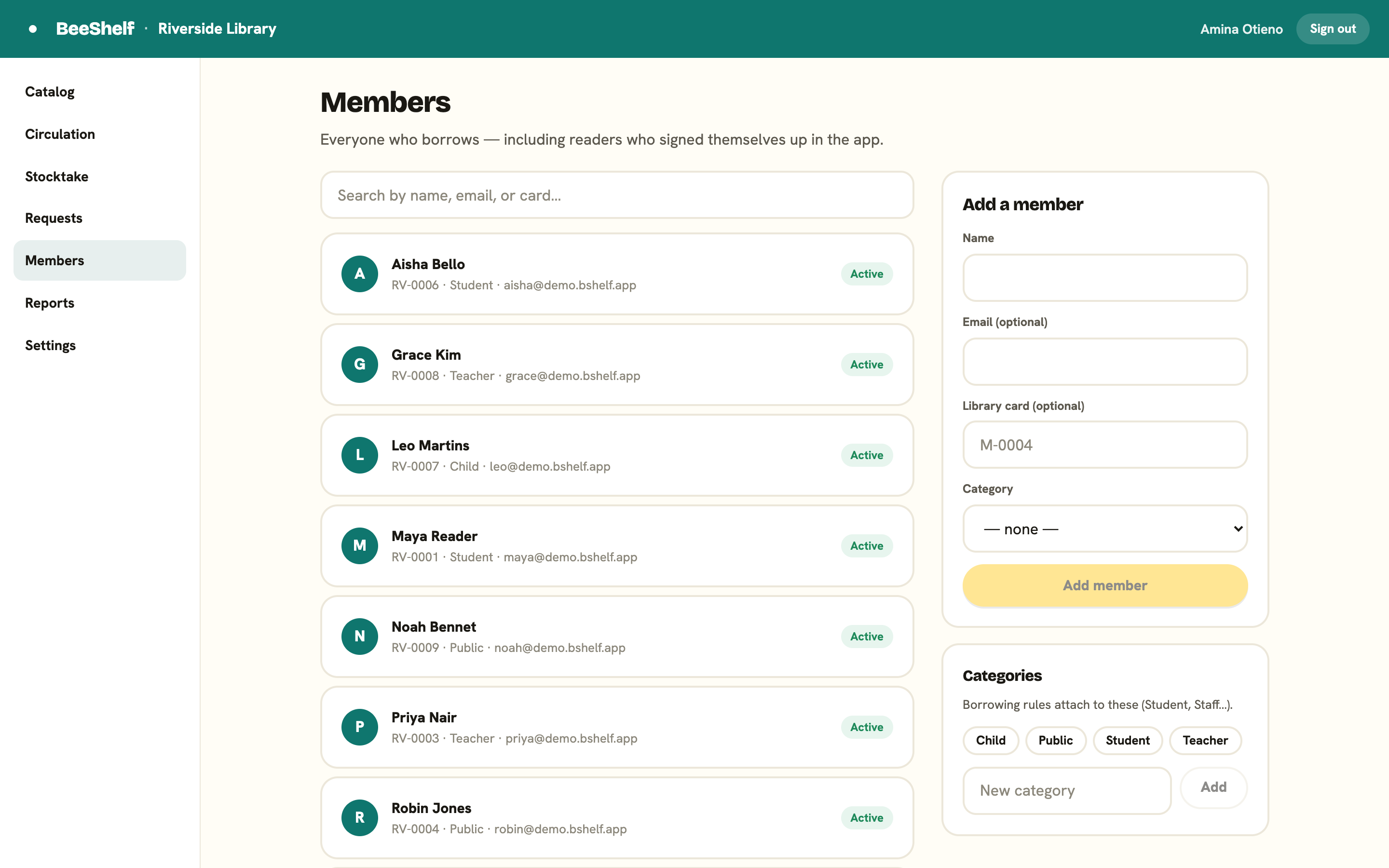
The Members tab is everyone who borrows, including readers who signed themselves up in the app. From here you add members, edit them, and see what each one has out.
Approve readers who ask to join
If your library asks a librarian to approve new readers, their requests land here first, in an Awaiting approval card at the top of the Members tab. The card only appears when someone is actually waiting, so an open library never sees it.
Each request shows the reader’s name, their email, and the date they asked. Press Approve to let them in and email them a “you’re approved” note, or Decline to remove the request. Declining sends no email, and they can ask again later.
Who gets sent here is decided by Settings, under “How readers join”: Open lets anyone join instantly, Approval required sends everyone to this queue, Email-domain allowlist admits your own domain automatically and queues everyone else, and Staff-only turns off self sign-up entirely. New libraries start on Approval required.
Find a member
Use the search box to find someone by name, email, or card number. The list shows each member’s avatar, name, card, category, email, and a status badge: Active, Suspended, Expired, or Pending. Pending means the reader has asked to join and is still waiting on a librarian, so they can’t borrow yet.
Add a member
In the Add a member panel on the right. Note that this adds a borrower, not a colleague: to give someone access to the Staff Console, invite them as staff under Settings instead.
- Type the Name. This is the only required field.
- Add an Email and a Library card number if you have them.
- Choose a Category (see below).
- Press Add member.
For a whole class or roster at once, press Import members at the top of this panel and upload a CSV instead of typing each person. See Import your library for the full walkthrough.
Categories
Categories group members so that borrowing rules can differ between them, for example Students and Staff. They’re managed in the Categories panel:
- Existing categories show as chips.
- To add one, type a name and press Add.
Lending rules attach to these categories. See Lending rules for how overrides work.
Member detail
Click any member to open their page. It shows when they joined, their lifetime loan count, and whether they have an app account, along with:
- On loan now, with due dates.
- Holds, showing either a queue position or “Ready to collect”.
- Borrowing history, every loan they’ve ever had, with the date out and the date back. Anything still out is marked “on loan” or “overdue”.
- Unpaid fines, each with Mark paid and Waive buttons. The card is hidden when there’s nothing owed.
Edit a member
On a member’s page, the Edit member panel lets you change their name, email, card, and category. Press Save changes.
Changing a member’s Status is reserved for library administrators, so the field is greyed out for other staff. An admin can set the status to Suspended to stop someone borrowing temporarily, or Expired when a membership lapses.