For admins
Branding & white-label
Put your library's name and colour on the whole app, from Settings.
BeeShelf carries your library’s identity, not ours. You set it in one place, and it applies everywhere your members and staff look.
Set your name and colour
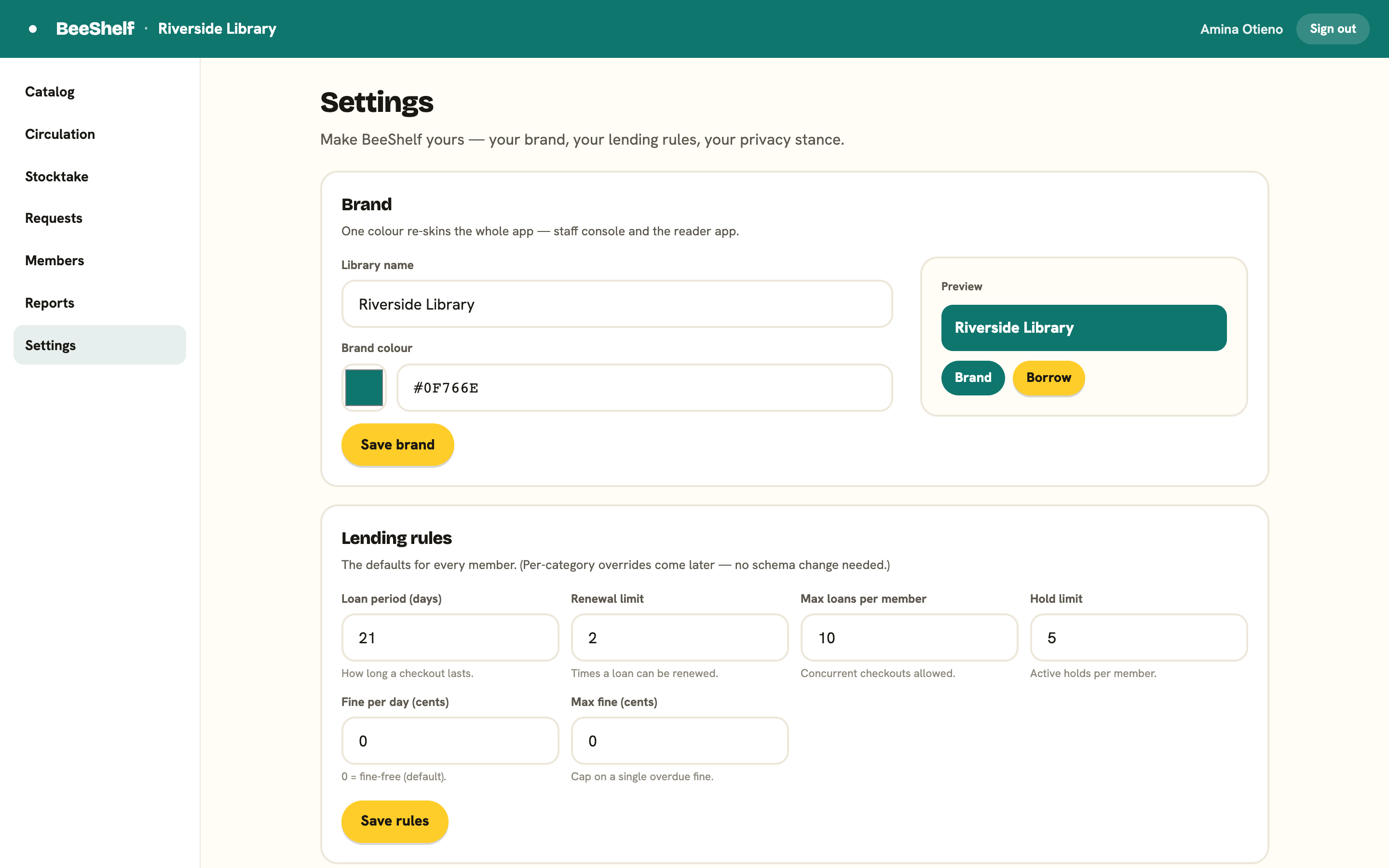
Open the Settings tab and find the Brand card. Settings is administrator-only, so if you don’t see the tab, ask an administrator at your library to make the change for you.
- Set the Library name. This is what members see at the top of the reader app, and on your library’s sign-in screen.
- Set the Brand colour, either with the colour picker or by typing a hex value (for example
#177e89). - Press Save brand.
A preview beside the form shows the colour in use. The change applies to the whole app: the Staff Console and the reader app re-skin from that one colour. The action button colour (the one that means “borrow” or “do it”) stays constant on purpose, so the most important action is always easy to find.
Setting up a brand-new library? The first-run Set up wizard at
/staff/setupasks for the same two things in its Make it yours step, with a palette of ready-made colours. The console re-skins as you pick, so you can see the colour before you keep it. Established libraries are never sent there.
Your own web address
Your library lives at your-slug.beeshelf.com, where the slug is the short name chosen when the library was set up. Readers use that address; staff add /staff.
A fully custom domain (your library’s own web address instead of a
beeshelf.comone) is part of the higher plans. If that’s something you need, talk to us.