For librarians
Checking books out and in
Lend and return books fast from the Circulation tab, at the desk or from a phone.
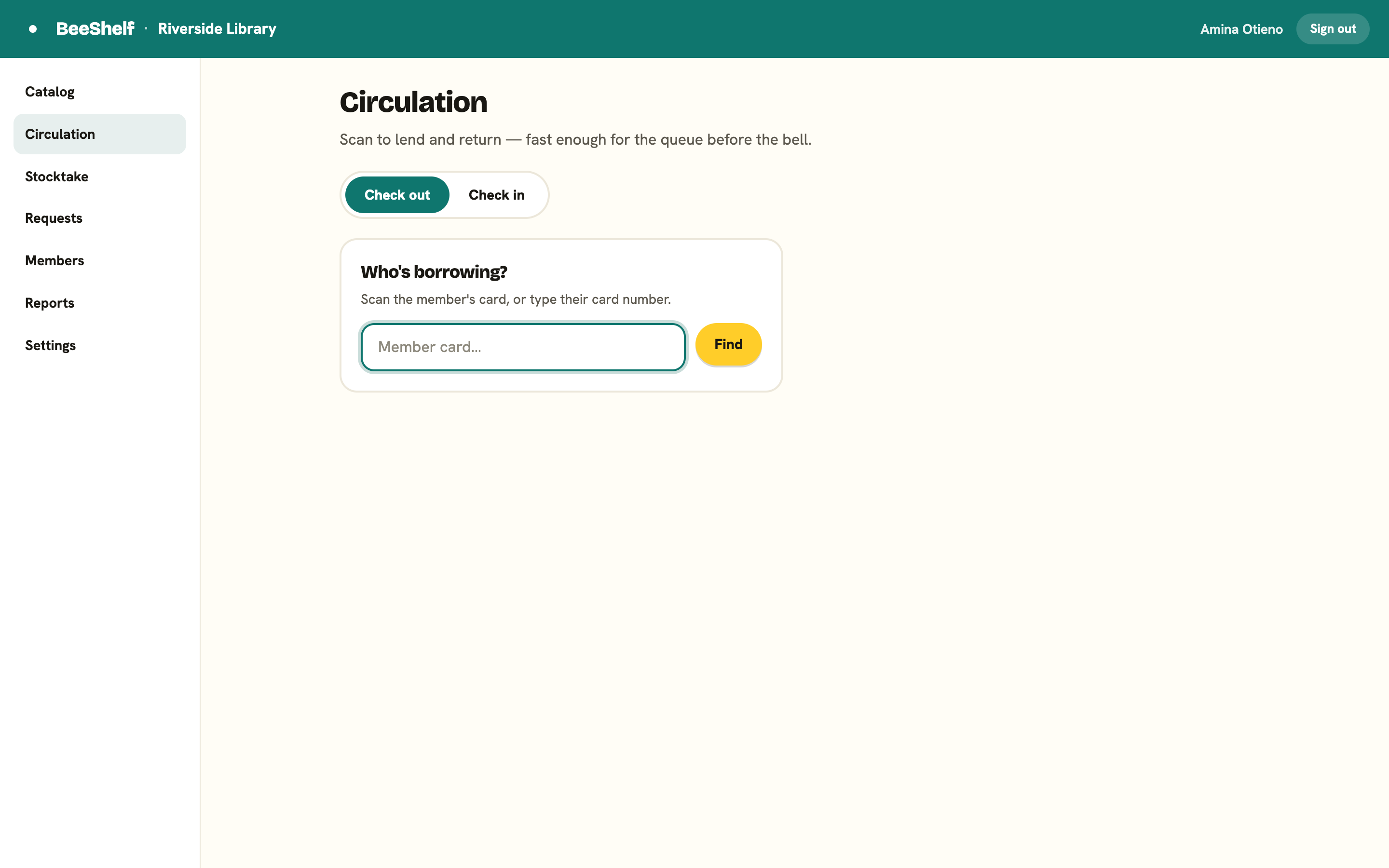
The Circulation tab is built for the queue before the bell: find the borrower by name and the book by title, or scan a card and a spine if you have barcodes. Scanning is the fast path, not a requirement. It has two modes you switch between at the top: Check out and Check in.
Check out
- With Check out selected, find the borrower. Under “Who’s borrowing?”, type their name and pick them from the results that appear as you type, or press Find to take the top match. You can also scan or type a card number if your members carry cards. If nothing matches you’ll see “No member matches that name or card.”
- Their name appears in a card headed Borrowing.
- Find the book: type a title or author and pick a copy from the results, which show each copy’s availability, or scan its barcode. Press Lend. You’ll get an instant confirmation with the due date. Search or scan the next book, and the next.
- When the borrower is done, press Done to clear them and start the next person.
Each loan adds a line to the feed below the box, with a tick for success or a mark if something stopped the loan (for example, the copy is not for loan).
The borrower’s sidebar
While a member is selected, the sidebar shows:
- On loan now, with every active loan and a Renew button on each.
- Holds, where you can place a new hold by typing an ISBN or barcode, and see this member’s current holds with their queue position.
Check in
Switch to Check in. The screen shows Currently out: a live worklist of every copy on loan, with the borrower, the title and the due date, and a Return button on each row. Rows past their due date are flagged Overdue. Press Return beside a book, or type in the box at the top to filter the list by title, author or borrower. Scanning a barcode and pressing Return is the fast path: an exact single match returns straight away. The list refreshes itself, so a colleague’s returns and reader self-checkouts appear without a reload. The feed tells you what happened to each one:
- Returned for a normal return.
- Returned · 3 day(s) late · fine 1.50 when the book was overdue and your rules charge a fine.
- Returned · set aside for [name] when someone is waiting on a hold. The book is held for them instead of going back to the open shelf.
You don’t need to look up the borrower to check a book in. Scan the barcode, or find the book in the Currently out list and press Return beside it.
Away from the desk
Circulation works on a phone too, for when you’re checking out a class while standing among them rather than at the counter. The steps are the same: find the member, find or scan books, lend.